Add music to video
Give your video a soundtrack without covering up the conversation. Add your music in ChatCut, then adjust its volume, timing, and fades.
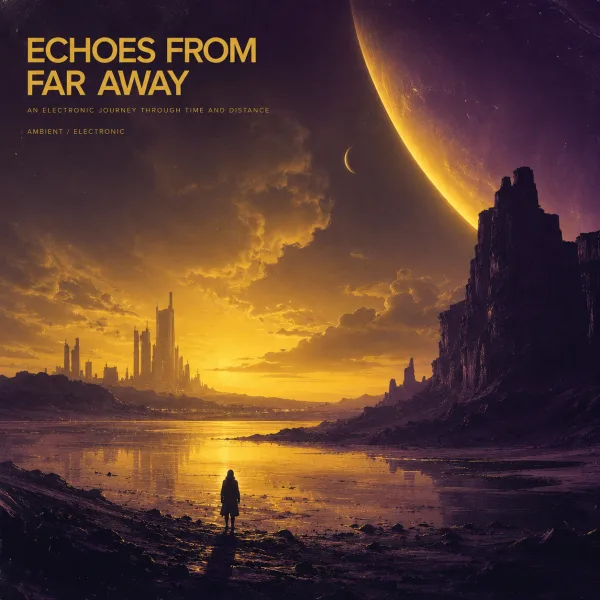 Cinematic Wide, slow build The clip's own sound. Your music is made or added in ChatCut.





Trusted by 400,000+ creators
How it works
How to add music to video in ChatCut
- 01
Describe the mix and open ChatCut
Write your soundtrack request on this page, open ChatCut, and sign in free. Import the video and music through My Assets → Upload → Files….
- 02
Place and balance the music
Drag the music onto an audio track. Adjust its start, length, volume, and fades, then show Audio ducking under Track controls if dialogue needs priority over the music.
- 03
Listen through and export
Play the video with all audio layers audible, especially the opening and ending. Select Export → Video and follow the video export guide to deliver the finished mix.
Why ChatCut
Why add music to video on separate tracks
-
Bring your own soundtrack
Import an audio file through My Assets → Upload → Files… and place it on an audio track. The media guide explains how project files become reusable assets.
-
Give each layer its own track
Separate dialogue, music, and effects so you can change timing without moving everything together. Keep the voice audible while you adjust the soundtrack.
-
Duck music beneath dialogue
Show Audio ducking in the track-header controls and set dialogue to anchor, music to follower. The music track lowers beneath the priority track as described in the timeline guide.
-
Fit the cue to the scene
Move and trim the music clip to match your opening and ending. Select the clip to adjust its start, length, and volume on the timeline and in the Inspector.
-
Generate a cue when you need one
Describe mood, instruments, tempo, and duration for AI music. Generated audio appears in My Assets and can be placed, trimmed, and mixed; generation uses credits.
-
Add a sound at the action
Preview supplied sounds in Library → Sound Effects or describe an original sound effect. Place it at the relevant moment, then balance it against dialogue and music.
Tips
Add music to video without burying the words
Choose music that leaves room for speech, then check its timing and ending against the video.
-
Leave room for speech
Test an instrumental cue beneath actual dialogue to hear whether its melody competes with the words.
-
Set the ducking roles
In Audio ducking controls, set dialogue to anchor and music to follower so music responds to speech.
-
Finish the musical phrase
Trim toward a natural musical boundary and fade the remaining tail so the ending feels complete.
Use cases
Add music to video for stories and demonstrations
-
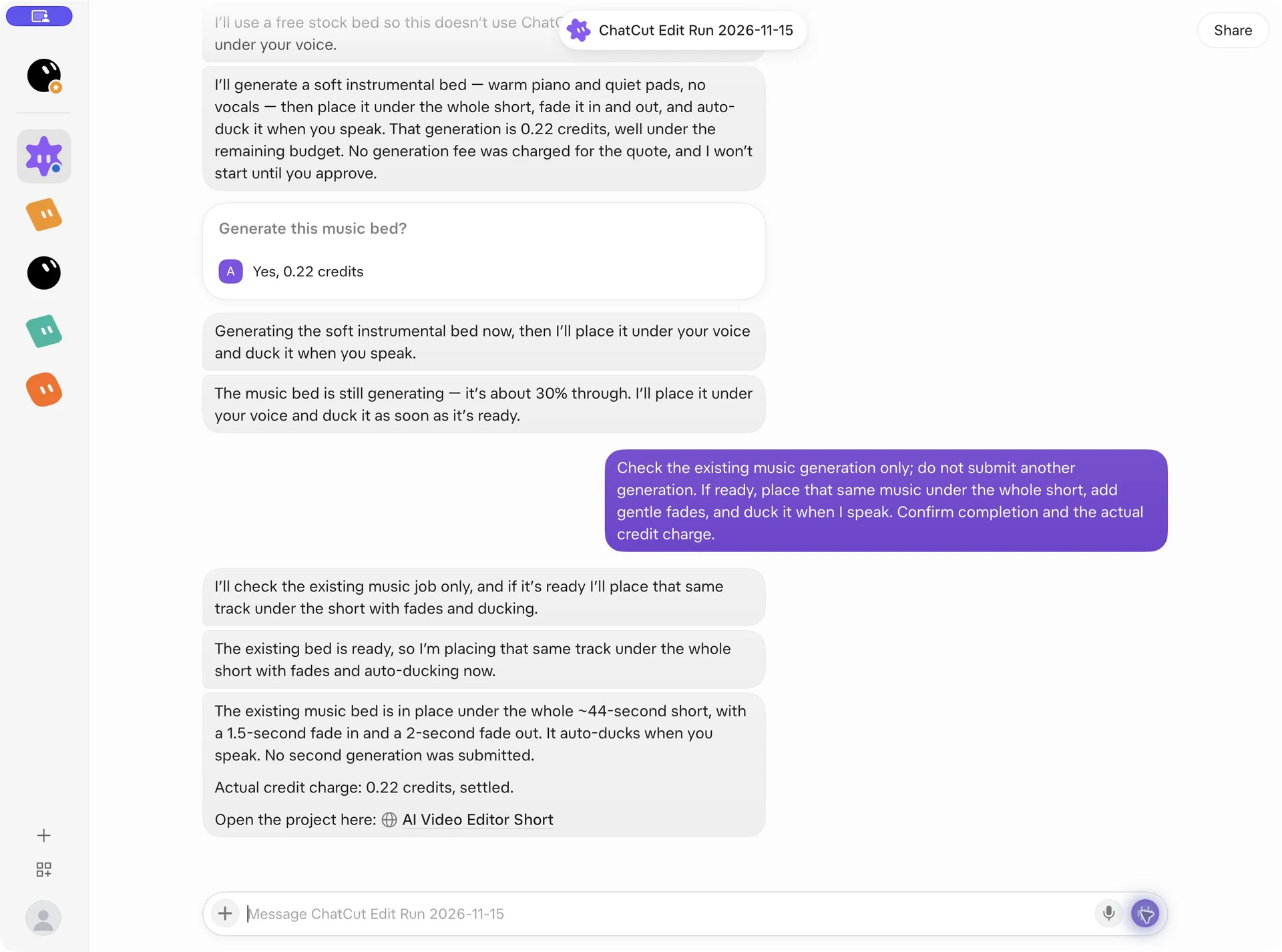
Music beneath an interview
Keep dialogue in front while a quiet instrumental track fills the gaps. Ask for music to lower during speech, then listen to the transitions and the final fade.
-
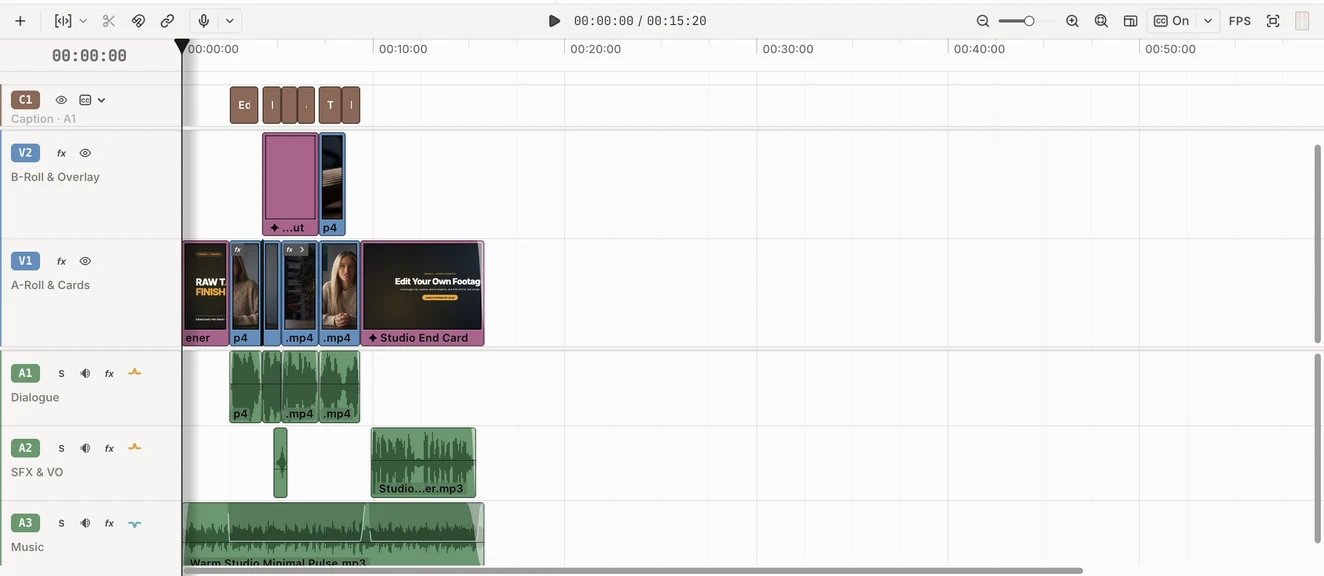
Narration over a music bed
Keep the recorded dialogue and added narration on separate tracks above the music. Set both spoken tracks as ducking anchors so the soundtrack lowers for each voice.
Keep editing
Finish the scene around your soundtrack
Once the music fits, add narration or captions where they help explain the picture. Keep every layer on the same timeline and check the combined result before export. For a song-led project, continue with the lyric video workflow.
- Conversational editing
- Text-based editing
- Auto-captions
- Motion graphics
- AI voiceover
- Generate clips
- Noise removal
- Multi-track timeline
-
You Can Now Edit Videos with Grok Bot
Edit with Grok Bot -
How to Make 3× the Content With AI (No Editing Experience)
Turn long videos into shorts -
I Turned One Product Photo Into a Full Ad With ChatGPT
Product ads skill -
How to Create Insane Motion Graphics with Astra 6
AI motion graphics
Skills
Hundreds of skills for any video
100+ Skills. No experience needed. Start in one click.





FAQ
Add music to video FAQ
Can I use an audio file I already have?
Yes, import the file into My Assets and drag it to an audio track. Move and trim it to the scene, then adjust the volume. This page passes your request to ChatCut; you add the actual music and video after signing in.
Can I keep the original dialogue?
Yes, put the music on its own audio track while retaining the video’s spoken audio. Lower the music directly or use dialogue as a ducking anchor. Listen to quiet words and pauses as well as loud passages before exporting.
Does mixing a soundtrack use credits?
Manual placement, trimming, mixing, and export do not consume credits. Built-in Agent requests and AI music or sound generation do use credits. Plan permissions and export quotas can still apply, as explained in the credits policy.
Can ChatCut make original background music?
Yes, describe the mood, genre, instruments, tempo, target duration, and whether vocals are allowed. Follow progress in My Assets and review the completed cue before placing it. Music generation uses credits and does not guarantee exact beat alignment with the picture.
Can I make a song with lyrics?
Yes, prepare or approve original lyrics and specify language, structure, and singing direction. Successful generation produces a new original song asset rather than remixing an existing recording. Review the song generation instructions before requesting vocals.
Where can I find short sound effects?
Open Library → Sound Effects, search or preview a card, and drag a suitable sound to the target time on an audio track. It becomes a regular clip you can move, trim, and mix. The Library guide explains how to browse supplied material.
Can I do this in the web editor?
Yes, importing music and mixing tracks works in ChatCut Web and Desktop. Choose Export → Video after reviewing the timeline. Keep the web project tab open during browser rendering, and wait for required media uploads when cloud rendering is used.
What if the music file is longer than the video?
Trim its edges on the timeline and place the ending where it supports the final shot. Listen for a musical phrase ending and soften the tail with a fade if needed. For a separate short source file, use the audio trimming tool before importing.
Related
More tools to add music to video and edit sound
All AI apps
Edit video
- Add image to video
- Add music to video
- Add text to video
- Slideshow maker
Audio & voice
Captions, text & translation
AI video & images
All free tools
Convert & compress
Edit video
Audio & voice