Slideshow maker for your photos
Import photos, arrange them on a video track, and set the pace with durations, transitions, and music. This is a manual editing workflow, with optional Agent guidance.

 1 / 5
15 s · 5 sample photos · Warm acoustic




Trusted by 400,000+ creators
How it works
How to use the slideshow maker
- 01
Describe the sequence
Write your slideshow request on this page, open ChatCut, and sign in free. Name the occasion, target length, and intended screen shape; add your photos in the editor.
- 02
Import and arrange
Choose My Assets → Upload → Files… and select your photos and music. Drag images onto a video track, set their order and duration, and place music on an audio track.
- 03
Review and save the video
Check every crop and cut in the Viewer. Add transitions through Library → Transitions, then choose Export → Video and review the available output settings before exporting.
Why ChatCut
Why use a slideshow maker with a timeline
-
Put photos in story order
Import images into My Assets, then drag them onto a video track in story order. Your source photos stay available for another arrangement.
-
Set a different hold for each photo
Adjust each image's duration independently. Give a detailed group portrait more time than a simple detail so viewers can find the people and read the scene.
-
Frame mixed photo sizes
Choose Aspect Ratio below the Viewer, then adjust each image's scale, crop, and position. Check portrait photos individually to avoid cropping through faces.
-
Connect neighboring images
Open Library → Transitions and drag one onto a shared cut between compatible clips. Keep images adjacent and preview the overlap before moving on.
-
Mix your own soundtrack
Import music onto an audio track beneath the pictures, then trim it and adjust its volume. Explore AI music for a newly generated soundtrack.
-
Add words when they help
Introduce a location with a title from Templates, or turn narration into captions. Add words for information the photo cannot communicate alone.
Tips
Plan the pace before using a slideshow maker
Choose a short photo story, then leave enough time for each image and title.
-
Sequence a beginning and ending
Open with the setting, follow with people and details, and finish on a conclusive image so the photos tell a story.
-
Budget time for reading
Watch at normal speed and extend detailed photos or titles so viewers can take in both the image and words.
-
Choose the canvas before titles
Set the final canvas shape and check crops before placing text so heads, hands, and useful details remain visible.
Use cases
Slideshow maker ideas for your photo collection
-
Give a travel photo gentle motion
Animate one photo to add a quiet pause between stills. Here, a cabin curtain moves beside an open window in a Kling 4.0 Flash clip made from a Seedream 5.5 image.
-
Linger on a small detail
Let a detail carry part of the story before returning to the wider scene. This coffee-on-the-dock image becomes a short moving shot with Kling 4.0 Flash.
-
Make a short and a full version
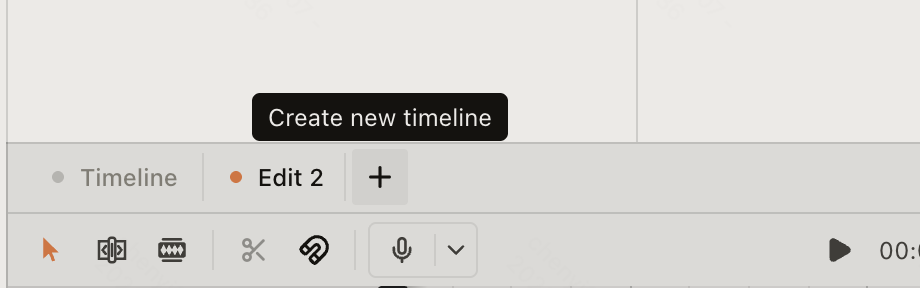
Build a brief social edit alongside a longer family or event version using separate timelines in one project. Keep the same photo library available while you adjust each version's pace.
Keep editing
Keep the photos, add motion when it helps
A photo sequence uses the images you already have. If one scene needs new movement inside the picture, try image to video as a separate generation step, then bring the resulting clip back into the sequence. Video generation requires Pro and credits; arranging existing photos does not.
- Conversational editing
- Text-based editing
- Auto-captions
- Motion graphics
- AI voiceover
- Generate clips
- Noise removal
- Multi-track timeline
-
You Can Now Edit Videos with Grok Bot
Edit with Grok Bot -
How to Make 3× the Content With AI (No Editing Experience)
Turn long videos into shorts -
I Turned One Product Photo Into a Full Ad With ChatGPT
Product ads skill -
How to Create Insane Motion Graphics with Astra 6
AI motion graphics
Skills
Hundreds of skills for any video
100+ Skills. No experience needed. Start in one click.




FAQ
Slideshow maker FAQ
Is the slideshow maker free?
Free includes the core editor; uploads, manual editing, transcription, and export do not consume credits. Agent messages and generated media use credits. Plan limits and cloud quotas still apply; see the credits policy.
Does it create the whole sequence from one prompt?
This page uses manual photo arrangement with optional Agent guidance. Describe the story, import your photos, and review their order, crops, and durations. The request box does not attach local pictures.
Which photo and music files can I import?
Supported image formats include JPEG, PNG, WebP, GIF, BMP, and SVG; common audio formats include MP3 and WAV. PNG/JPEG images and WAV/MP3 audio are useful interchange choices. See supported formats for compatibility details.
Can I use music I already have?
Yes. Upload the audio, drag it beneath the photos, and adjust its start, length, and volume. You can add music without generating another recording, then listen through the ending.
Can I mix photographs with video clips?
Yes. Place both on visual tracks in the same timeline. Check framing and sound when a moving clip interrupts the photo sequence so its audio does not compete with the soundtrack.
Can I create a vertical version?
Choose 9:16 with Aspect Ratio below the Viewer. Review every crop and caption afterward, since a composition that worked in a wide frame can hide faces or crowd titles in portrait.
How long can the finished sequence be?
The running time follows the clips and photo durations on the timeline. There is no fixed maximum promised here for every device. Check export access and plan limits before arranging a long collection.
Can I download a video instead of just playing the photos?
Yes. Choose Export → Video to render the timeline as a file. Web export offers H.264/MP4 or VP8/WebM; keep the tab open during browser rendering. Check the finished picture and sound using the export guide.
Related
More tools for your slideshow maker workflow
All AI apps
Edit video
- Add image to video
- Add music to video
- Add text to video
- Slideshow maker
Audio & voice
Captions, text & translation
AI video & images
All free tools
Convert & compress
Edit video
Audio & voice