SRT translator for your video captions
Translate an existing caption track in ChatCut and export the result as SRT. Start with transcribed video or audio, then choose a target language in the Captions menu.







Trusted by 400,000+ creators
How it works
How to use the SRT translator with your media
- 01
Describe your caption task
Write your source and target language above, open ChatCut, and sign in free. Import video or audio through My Assets → Upload → Files…, add it to the timeline, and wait for transcription.
- 02
Translate the active captions
Choose the intended source track and turn captions on. Open the right side of Captions, select Translate captions, and choose a language. Select Translation (language) to review and edit its Content.
- 03
Export the translated SRT
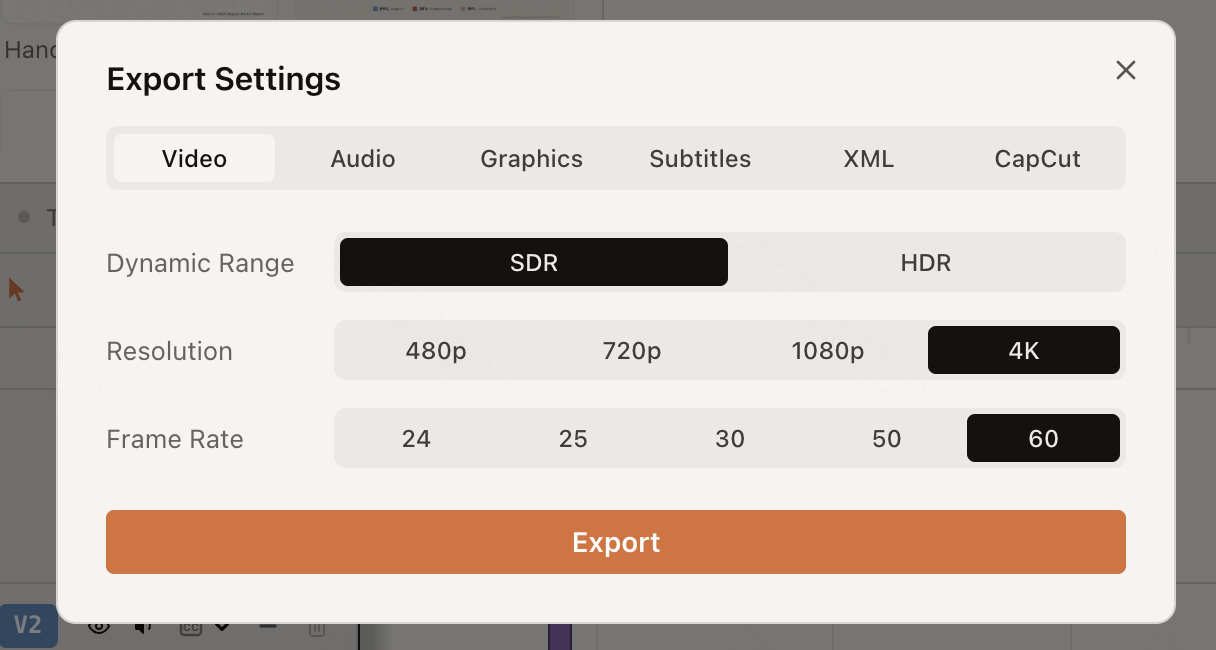
Keep the translated caption source active, then open Export → Subtitles. Choose SubRip (.srt) and export. For captions rendered into the picture, use Export → Video with the intended captions visible.
Why ChatCut
Why use this SRT translator workflow
-
Start from transcribed speech
Build captions from the active video or audio track before translating. Start with the caption generator or audio transcription workflow to check words against the recording.
-
Choose the target language
Turn captions on, open the right side of the split Captions control, and select Translate captions. Choose a target language and wait for the new caption source to appear.
-
Keep original and translated text
The result appears as Translation (language), separately from the original caption source. Select the version you intend to edit so corrections stay with the right language.
-
Edit and style the translated captions
Use Content to correct wording or split and merge caption cards. Preview a built-in or saved caption style on the active language before applying it.
-
Keep captions connected to the edit
Translated captions follow the retained source time when you trim, split, move, or change the speed of media. Review the words and timing afterward, especially where a cut removes part of a sentence.
-
Export the language you selected
Export → Subtitles saves the active caption or translation track as SubRip (.srt) or plain text (.txt). Wait for transcription to finish before exporting timed text.
Tips
Prepare captions before the SRT translator
Review the source transcript, then check translated captions at playback speed before export.
-
Select the intended caption source
Choose the correct track and wait for transcription to finish so translation uses the recording you intend.
-
Read captions at playback speed
Play each cue and split crowded cards at natural breaks so viewers can finish reading before the text changes.
-
Confirm the export language
Check the active translated track before exporting subtitles so the SRT contains the intended language.
Use cases
Where an SRT translator fits your edit
-
Readable subtitles for translated lessons
Choose a caption style that keeps translated lessons easy to follow. Preview it on the active language before applying it to the video.
-
Translated captions that fit your video
Adjust font size, color, and placement so translated lines stay readable over the footage. Check longer phrases at playback speed before exporting.
-
Subtitle files alongside finished videos
Deliver the selected language as an SRT and export a captioned video separately when needed. Choose Subtitles in Export for editable text, or Video for captions rendered into the picture.
Keep editing
Keep translated wording with your video edit
Select the intended language before editing or exporting captions, and review it again after cuts. For translated speech too, use AI dubbing and state that audio requirement.
- Conversational editing
- Text-based editing
- Auto-captions
- Motion graphics
- AI voiceover
- Generate clips
- Noise removal
- Multi-track timeline
-
You Can Now Edit Videos with Grok Bot
Edit with Grok Bot -
How to Make 3× the Content With AI (No Editing Experience)
Turn long videos into shorts -
I Turned One Product Photo Into a Full Ad With ChatGPT
Product ads skill -
How to Create Insane Motion Graphics with Astra 6
AI motion graphics
Skills
Hundreds of skills for any video
100+ Skills. No experience needed. Start in one click.






FAQ
SRT translator FAQ
Can I upload an SRT file directly for translation?
The documented workflow starts from transcribed video or audio, then translates its caption track. Direct standalone SRT upload for translation is not documented. Start with the source recording for the workflow described here.
Is subtitle translation free?
Uploads, transcription, standard caption editing, and subtitle export do not consume credits. The documentation does not specify a separate caption-translation price, so check the current cost in ChatCut before using translation. Built-in Agent messages use credits, as explained in the credits policy.
Does this change the original spoken audio?
No. Translate captions creates translated text and keeps it separate from the original caption source. For speech in another language, use video translation and specify whether you want audio-only dubbing or mouth synchronization.
Which formats can I export?
Export → Subtitles offers SubRip (.srt) and plain text (.txt). The output follows the active caption or translation track. Choose the translated source and finish transcription before you export, then inspect the saved text to confirm the language.
Why is Translate captions unavailable?
Translation needs an existing caption program. Select the intended source track and wait for transcription to finish first. If you are still preparing the source, the video transcription workflow explains the starting point.
Can I correct the translation without changing the original?
Yes, on Web and ChatCut Desktop 0.6.7 or later. Select the translated caption source before editing its Content or pagination. Editing the translation keeps the original unchanged, and repaginating it preserves your corrected text.
What happens after I trim the video?
Translated captions follow the corresponding retained source time. Check the remaining words and cue timing after a trim, because the full translated sentence is not compressed into the shortened clip. Undo restores the previous media and caption state if the edit needs to be reversed.
Which target languages can I choose?
Open Translate captions to choose from the target languages offered in the editor. The caption documentation does not specify a fixed language count. Review the translated wording with someone who knows the target language before delivering the final SRT.
Related
More subtitle translation tools
All AI apps
Audio & voice
Captions, text & translation
AI video & images
All free tools
Convert & compress
Edit video
Audio & voice